Payments
Pay keeps family balances and team payment work in one place. Families get one recommended payment, while treasurers can still create custom charges, send reminders, review refunds, and export records.
Paying a family balance
- Open Pay. If you manage more than one child, choose who you are paying for.
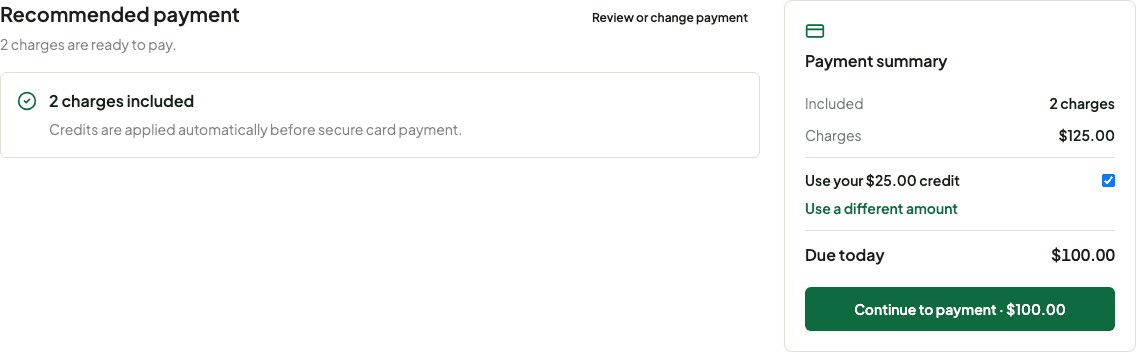
- Review the amount shown under Recommended payment. Required charges due now and eligible credits are included automatically.
- Select Review or change payment only when you want to add an optional charge, pay a different allowed amount, or change how much credit to use.
- Select Continue to payment. Stripe opens a secure payment page for any amount not covered by credit.
- After payment, keep the page open until Payment received appears. If confirmation is slow, you can safely close the page and SeasonKit will update it automatically.
Finishing or changing an unfinished payment
Select Continue payment to return to the secure Stripe page without choosing everything again.
Select Change what I'm paying when no card payment is processing and you need to choose again. SeasonKit returns any reserved family credit before opening a new choice.
If SeasonKit says the payment is confirming, do not start another payment. The balance and receipt update after Stripe confirms the first one.
Creating a charge
- Use the team and season switcher at the top of the dashboard to choose where you are working.
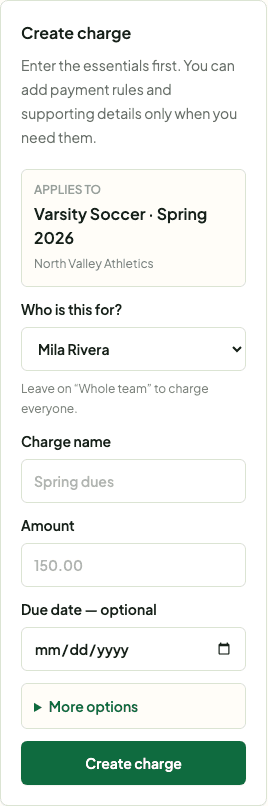
- Open Pay, choose Charges, and select who the charge is for.
- Enter the charge name, amount, and optional due date.
- Open More options only when you need a category, description, supporting image, optional charge, partial payments, or credit rules.
- Select Create charge. SeasonKit returns you to Families so you can confirm the new balance.
Managing many teams
The Dashboard shows organization-wide items that need attention. Use Open Pay on a team row to switch context and go directly to that team.
Inside Pay, search and filter family balances. The list is paginated for large rosters, and Send all reminders reports progress in safe batches.
Use Reports & refunds for failed payment updates, refund requests, and exports. Completed activity stays collapsed until you need it.
Handling a refund request
- Open Pay for the correct team and choose Reports & refunds.
- Review the family's reason and the refundable card amount. Credits are not sent through Stripe.
- Approve or reject the request. An approved request still needs the separate Send approved refund action.
- After sending it, leave the record in place while Stripe confirms it. Payment activity updates automatically.
- If a refund fails, keep the existing record and use its plain-language status to decide whether to try again or contact support.
Before sending reminders
- Check that each family has the correct guardian email.
- Families with no balance, a recent reminder, or no email are skipped automatically.
- If delivery stops, select Send all reminders again. Previously sent reminders are protected by the cooldown and are not duplicated.
- Use Copy payment link when a family prefers text message or another private channel.